YOTTAMINE PREDICTIVE PLATFORM
General
Trial Account Users
- How long is the free trial period?
- What happens when my trial expires?
- Is there a restriction on the size of the files I want to upload to the cloud?
- What is the difference between a trial account and a registered account?
Registered Account Users
Billing
- What is Yottamine’s charging system?
- Where do I go to purchase credits?
- What is the process for purchasing credits?
- Why does Paypal show the error message "The card you entered cannot be used for this payment. Please enter a different credit or debit card number" when I tried to purchase credits with my credit/debit card?
Using the Yottamine Predictive Platform
Security
Did not find what you are looking for? Submit your question to us at contact@yottamine.com
-
How long is the free trial period?
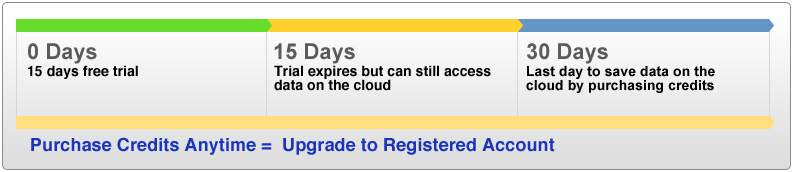
The free trial period is for 15 days. During the 15 days you can upgrade to become a registered user anytime by purchasing credits using the "Upgrade Now" link on the top right hand corner of every page. (Click to enlarge)
-
What happens when my trial expires?
You will still be able to access all your previous data on the cloud for another 15 days after the trial period has ended, however, you will not be able to start any new projects. All data will be removed from the cloud 15 days after the trial has expired and if no credits were purchased.
-
Is there a restriction on the size of the files I want to upload to the cloud?
The trial account limits the cloud space to 200 MB, so depending on what you have already uploaded to the cloud this will affect the remaining cloud space available for other files you wish to upload.
-
What is the difference between a trial account and a registered account?
The trial account is free but only valid for 15 days with a restriction of cloud space of 200 MB. The registered account runs on credits and does not expire unless the account runs out of credits. Unlike the trial account, there is also no limit on the cloud space for registered accounts as long as there are enough credits in the account. Yottamine uses a credit based system which is explained in detail under "What is Yottamine’s charging system?" in the "Billing" section.
-
How does the registered account work?
The registered account works base on the number of credits the account has. As long as there are credits in the account, the account does not expire.
-
Will my credits expire?
No, your credits will not expire.
-
Is there any other way to subscribe to Yottamine’s services other than purchasing credits?
If you would like to become a regular subscriber to our services, we will be offering membership services in the near future.
-
What is Yottamine’s charging system?
- Yottamine employs a credit based system where customers purchase a certain amount of credits and these credits are used towards the type of tasks performed within the platform. If there are not enough credits to complete a job, users will be prompt to buy more credits in order to finish running their current job.
- The price for the credits is set to: $1 = 1 credit.
- A small number of credits will also be charged on a monthly basis for data storage purposes.
-
Where do I go to purchase credits?
You can purchase credits by clicking on the "Upgrade Now" link (for trial users) or "Add More Credits" link (for registered users) on the top right hand corner of every page.
-
What is the process for purchasing credits?
Yottamine uses Paypal checkout, but if you do not own a Paypal account, you can simply pay with a credit or debit card.
If you have a Paypal Account:
- Step 1: Make your purchase selection on Yottamine’s page by choosing the number of credits you would like to purchase and click on the "Buy Now" button.
- Step 2: You will land on Paypal’s sign in page, please log in with your Paypal Account.
- Step 3: You will review and be able to change your shipping address and payment method on Paypal’s site. Click on "Pay Now" to make the purchase, or you can click on the "Cancel and return to Yottamine Analytics LLC" link below the "Pay Now" button if you wish to cancel your order.
- Step 4: You will see the "Thank you for your order" confirmation page on Paypal.
- Step 5: Click on "Return to Yottamine Analytics LLC" to return to our site. You will see the updated number of credits in your account once the transaction has been confirmed.
- Please note: Yottamine does not store any billing⁄shipping details.
If you do not have a Paypal Account:
- Step 1: Make your purchase selection on Yottamine’s page by choosing the number of credits you would like to purchase and click on the "Buy Now" button.
- Step 2: You will land on Paypal’s sign in page, click on "Don’t have a Paypal account?".
- Step 3: Enter your credit or debit card information and then click on "Review and Continue".
- Step 4: You will review your shipping and payment information on Paypal’s site. You may change your shipping address but not your payment method. Click on "Pay Now" to make the purchase, or you can click on the "Cancel and return to Yottamine Analytics LLC" link below the "Pay Now" button if you wish to cancel your order.
- Step 5: You will see the "Thank you for your order" confirmation page on Paypal.
- Step 6: Click on "Return to Yottamine Analytics LLC" to return to our site. You will see the updated number of credits in your account once the transaction has been confirmed.
- Please note: Yottamine does not store any billing⁄shipping details.
-
Why does Paypal show the error message "The card you entered cannot be used for this payment. Please enter a different credit or debit card number" when I tried to purchase credits with my credit⁄debit card?
This could be due to the "Limit on Non-Member Credit Card Usage" restriction employed by Paypal for security and fraud protection purposes. Try using a different credit card or email address when this happens.
-
What are projects and jobs and what is the difference between them?
A project is made up of different jobs. Project and job names are used as folder names to designate where result files and workflow or batch files are saved to when building models. Project and job names are also aimed to help users distinguish between the different models they have built.
Where can I save my models and testing results?- Right before a model is built or tested, the system will prompt you to enter a project name and job name in order to save the result files to a designated "results" folder under the project name and job name. You will not be able to change the file names and the location of where the result files are saved until they have been created.
- Once a model has been built, you will find the result files under the Project Name→JobName→ results folder. The best model will have a ".model" file extension and the results file will have a ".result" file extension.
- For batch processing, the batch result files will be under the ProjectName→TrainingFileName→results folder.
What are workflow files and where can I save them?- Workflow files are files that contain all of the settings and parameters of a particular job by storing all of the attribute selections made from step 1 to 4 when building a model. Workflow files can be reused for other jobs in either the Build & Train a New Model or the Batch Processing module.
- You will be prompted to save the workflow file when you click on the "Build Model" button. You will need to input a project name and job name to save a workflow file. While you can change the location of where this file is saved, file name cannot be changed until the file has been created. Workflow files are saved in XML format with the file extension ".wfxml" under the ProjectName→JobName folder.
What are batch files and where can I save them?- Batch files are similar to workflow files except they are for the Batch Processing module only and contain not only the attribute selections but also the data used in building batch models.
- The system will prompt you to save batch files before building batch models. You will need to enter a project name to save the batch file. While you can change the location of where this file is saved, file name cannot be changed until the file has been created. Batch files are saved in XML format with the file extension ".bxml" the under the ProjectName folder.
Where is my data stored and is it secure?Yottamine employs the Amazon Simple Storage Service (Amazon S3) to store all of our client's data. Amazon S3 stores objects redundantly on multiple devices across multiple facilities. Cryptographic tools are used by Amazon S3 to authenticate users in order to ensure security. For more information on Amazon S3, please visit the following sites:
http://aws.amazon.com/s3/
http://aws.amazon.com/s3/faqs/Who can access my data at Yottamine Analytics?Yottamine Support Administrators can access data for support purposes only.
What are the password requirements for Yottamine user accounts?Yottamine requires a minimum of 8 characters with the use of one number, letter or special symbols.
Where do the model building processes take place?For registered account users, the model building process takes place with Amazon Elastic Compute Cloud (Amazon EC2). For more information on Amazon EC2, please visit the following sites:
http://aws.amazon.com/ec2/
http://aws.amazon.com/ec2/faqs/